How to install templates on the Kobo Libra Colour
These steps follow Kobo's own instructions, checked October 6, 2026.
Copy the PDF over a USB cable, or download it from Dropbox or Google Drive, then write on it with the Kobo Stylus.
On the Kobo Libra Colour: You need the Kobo Stylus 2, sold separately.
1. Copy the template to your tablet
Choose one of 2 ways.
Over USB
- Connect the Kobo to your computer with a USB cable.
- On the Kobo, tap Connect when you see Computer detected.
- Drag the PDF into the KOBOeReader drive on your computer.
- Eject the drive, then unplug the cable.
From Dropbox or Google Drive
- Kobo can download PDFs from Dropbox (Kobo software 4.18 or later) or Google Drive (4.37 or later).
- Follow Kobo's guide for your service, linked under Sources, to connect it and add the file.
2. Open the template
- Open the PDF on your Kobo.
- Write anywhere on the page with the Kobo Stylus. Your notes save automatically.
3. Check that the links work
Kobo's help pages don't say whether links inside a PDF work. Before you buy a linked planner, check that its listing names your Kobo.
Good to know
- The stylus can't write on PDFs with DRM or with annotations turned off.
- A PDF you add this way shows up only on that eReader, and your handwritten notes stay on it too.
Templates that fit the Kobo Libra Colour
2 templates we've reviewed fit its screen. See them with filters
-
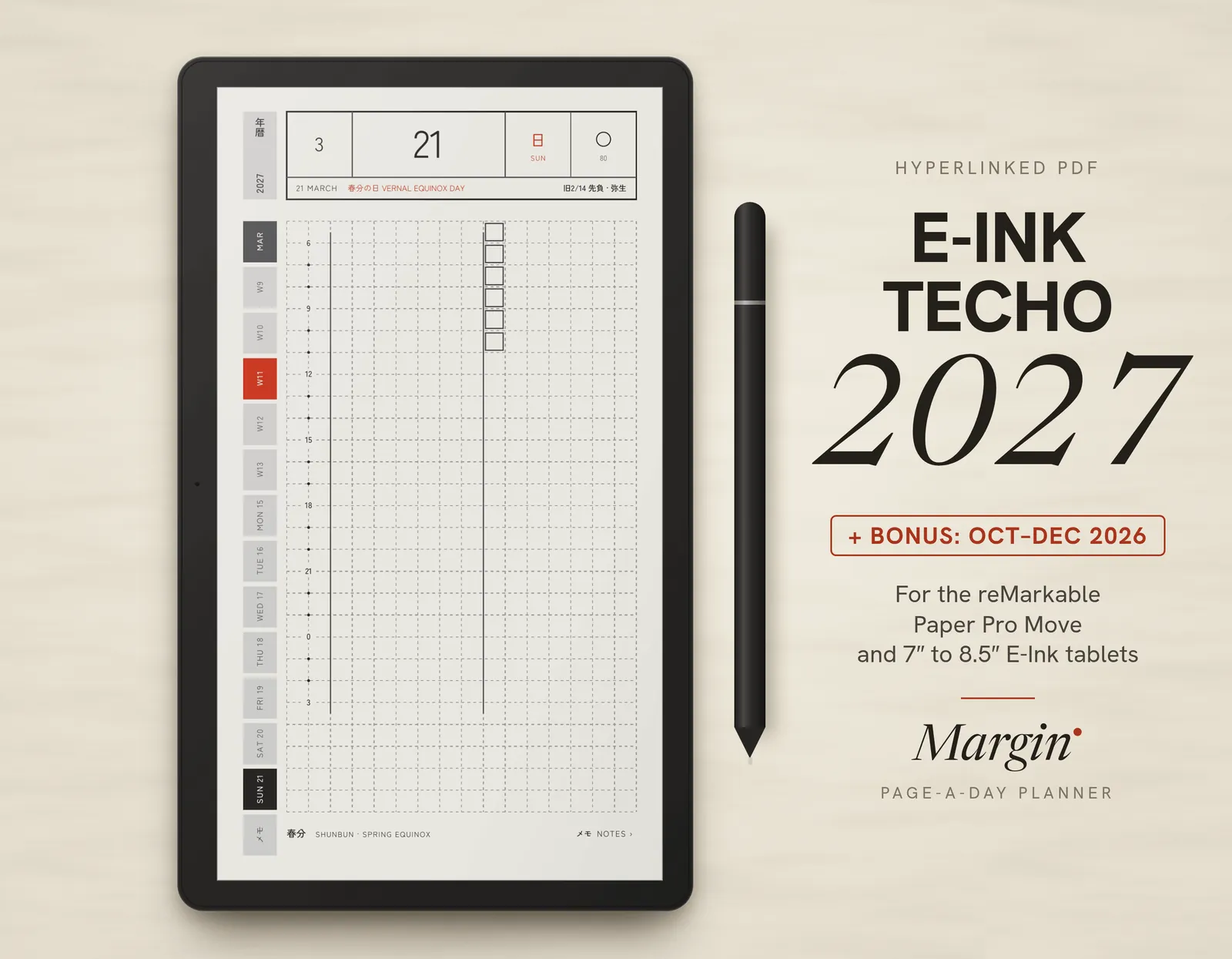
Margin Techo 2027: Paper Pro Move$9.95
Margin · marginpaper.com
-
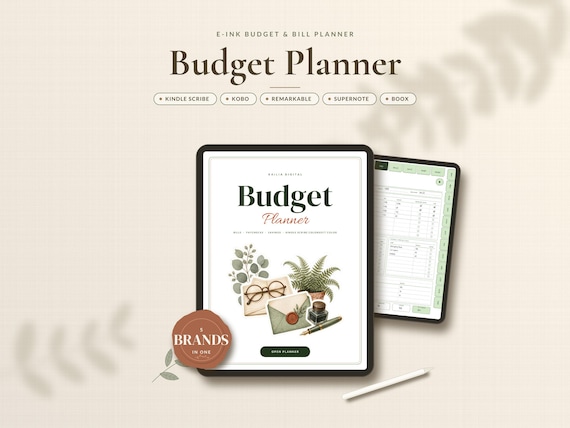
E-ink Budget & Bill Planner$10.49was $14.99
KaiLiaDigital · Etsy
From creators, not reviewed yet
Template makers sent us these for the Kobo Libra Colour. We checked that each link works, but we haven't reviewed them. Submit yours.