How to install templates on the Kindle Scribe (2025)
These steps follow Amazon Kindle's own instructions, checked October 6, 2026.
Send the PDF with Amazon's Send to Kindle service, or import it from Google Drive or OneDrive. Don't copy it over a USB cable, or you won't be able to write on its pages.
1. Copy the template to your tablet
Choose one of 3 ways.
From a web browser
- Go to amazon.com/sendtokindle and sign in with the Amazon account your Scribe uses.
- Add the PDF and send it.
- It appears in your Scribe's library after the Scribe syncs.
From the Kindle app
- Use the Send to Kindle option in the Kindle app on your phone or computer, and choose the PDF.
From Google Drive or OneDrive
- Save the PDF to your Google Drive or Microsoft OneDrive.
- On the Scribe, import it from Google Drive or OneDrive. Amazon lists this for the 2025 Scribes.
- The Scribe keeps its own copy. Your notes don't sync back to Drive, but you can export the marked-up PDF.
Avoid: Don't copy the PDF over a USB cable. Amazon says the Scribe can't write directly on PDFs loaded over USB-C.
2. Open the template
- Open the planner from your library.
- Write on the page with the pen.
3. Check that the links work
Amazon's help pages don't say whether links inside a PDF work. If tapping a tab with the pen draws a line instead of jumping, try tapping with your finger.
Templates that fit the Kindle Scribe (2025)
We haven't reviewed one yet.
Templates made for a tablet with the same screen
These templates list the Kindle Scribe Colorsoft. The Kindle Scribe (2025) has the same screen size and resolution, so the pages should fill it too. Toolbars differ between makers, so check that the tabs aren't hidden under yours.
-
07
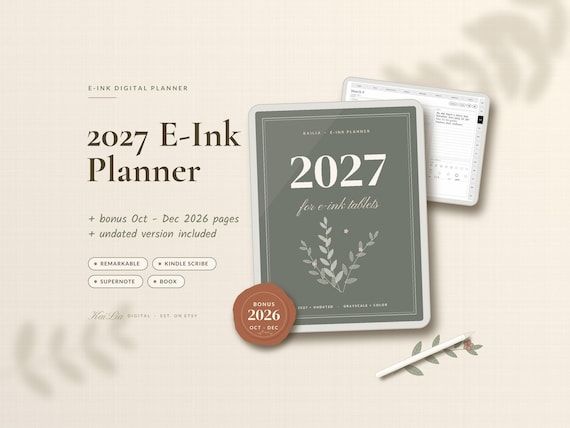
2027 E-Ink Planner
KaiLiaDigital · Etsy · 2027, plus undated
8.3$15.99$31.99
From creators, not reviewed yet
Template makers sent us these for the Kindle Scribe (2025). We checked that each link works, but we haven't reviewed them. Submit yours.