How to install templates on the Boox Tab Ultra C Pro
These steps follow Boox's own instructions, checked October 6, 2026.
Copy the PDF over Wi-Fi with BooxDrop or over a USB cable, then import it into the Notes app to write on it and tap its links.
1. Copy the template to your tablet
Choose one of 2 ways.
With BooxDrop (Wi-Fi)
- Connect the Boox and your computer to the same Wi-Fi network.
- On the Boox, open BooxDrop from the Apps panel, or swipe down and long-press the transfer button.
- On your computer, open the address BooxDrop shows, or go to push.boox.com.
- Send the PDF to the Boox.
Over USB
- Connect the Boox to your computer with a USB cable.
- Copy the PDF to the Boox's storage.
2. Open the template
- Import the PDF into the Notes app as a file-based note. This needs Boox firmware V4.0 or later.
- Write on the page with the stylus.
3. Check that the links work
Boox says links inside PDFs imported into Notes are fully clickable, starting with firmware V4.0.
Templates that fit the Boox Tab Ultra C Pro
-
01
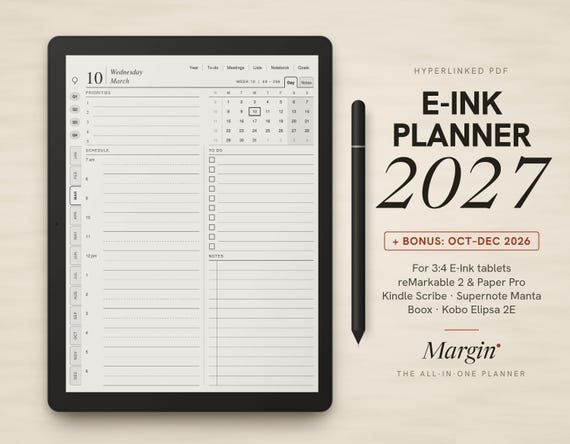
Margin Planner 2027
Margin · marginpaper.com · 2027, plus Oct to Dec 2026
9.5$9.95 -
02
Margin Planner 2027: Great Authors
Margin · marginpaper.com · 2027, plus Oct to Dec 2026
9.2$14.95

Templates made for a tablet with the same screen
These templates list the Boox Note Air6 C or Boox Note Air5 C. The Boox Tab Ultra C Pro has the same screen size and resolution, so the pages should fill it too. Toolbars differ between makers, so check that the tabs aren't hidden under yours.
-
07
2027 E-Ink Planner
KaiLiaDigital · Etsy · 2027, plus undated
8.3$15.99$31.99

From creators, not reviewed yet
Template makers sent us these for the Boox Tab Ultra C Pro. We checked that each link works, but we haven't reviewed them. Submit yours.